
Can you edit NotebookLM slides?
Yes, in two ways. For AI editing, describe the changes in NotebookLM and generate a revised deck. For manual editing, convert the exported slides first, then update the text in PowerPoint. The conversion step is necessary because NotebookLM exports each slide as one image.
AI editing: revise the deck in NotebookLM
Use this option when you are happy for NotebookLM to create a new version of the slides from your written instructions.
- Open the deck from the Studio panel.Select Review at the top.
- Describe the changes on each slide.You can request different wording, a new layout or updated visuals.
- Review the requested changes.You can also delete slides or rearrange their order.
- Generate the revised deck.NotebookLM creates a new version instead of changing the exported PowerPoint.
Google notes that your notebook sources are not checked again during revisions, so review factual changes before presenting. See Google’s NotebookLM slide instructions.
Manual editing: convert the exported slides first
NotebookLM’s PowerPoint download places each slide into the file as one image. The presentation opens normally, but you cannot select and rewrite the individual words.
To edit the text manually, first convert the NotebookLM PDF or slide images into an editable PowerPoint. You can then open the PPTX and update the wording yourself.
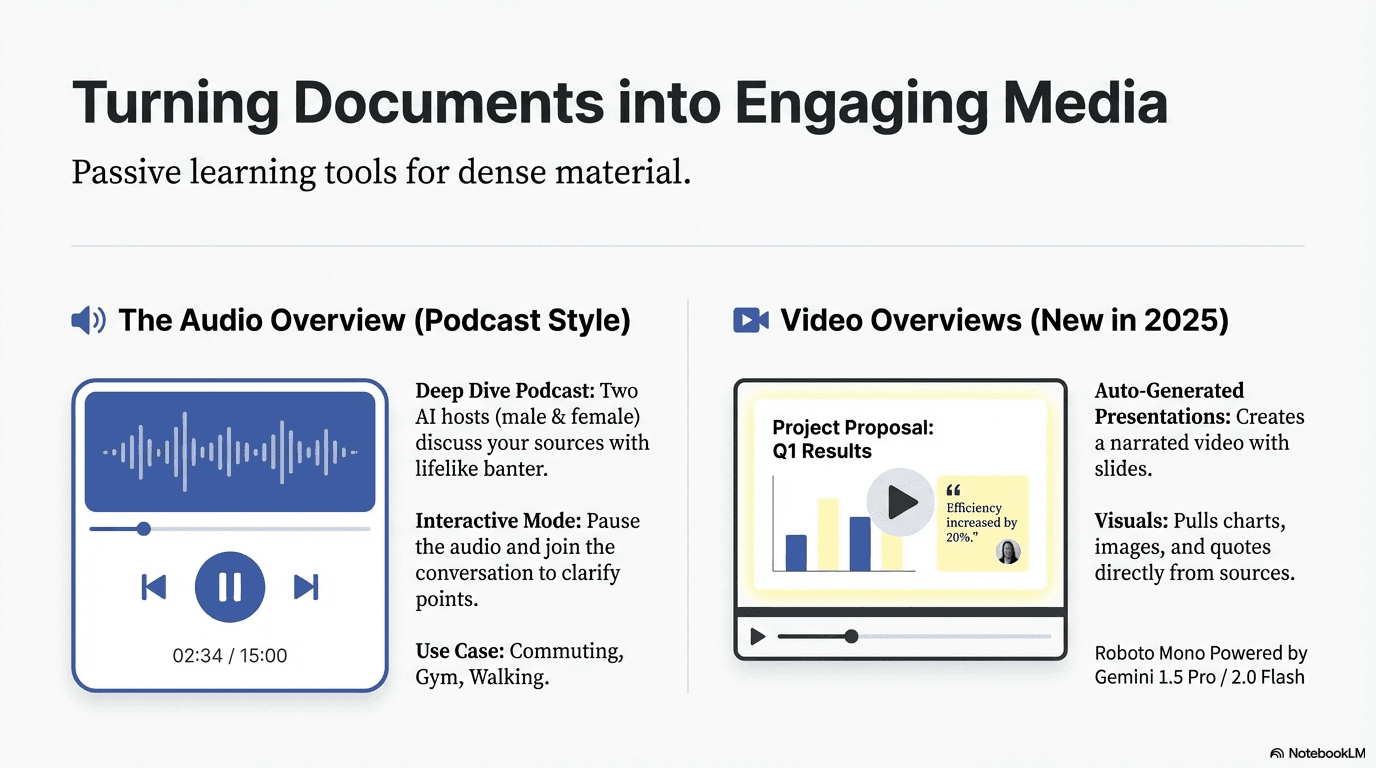
How to make a NotebookLM slide editable with EditLM
- Export the slide as a PDF or image.Use the NotebookLM PDF download, or save the slide as a PNG or JPG. If you already have a flattened PPTX, export the pages you need as PDF or images first.
- Upload the file and choose the pages.EditLM accepts presentation PDFs up to 50 MB and individual PNG or JPG slide images. For PDFs, select up to 20 pages per conversion.
- Download and check the editable PPTX.Open the result in PowerPoint and click the headlines, descriptions, dates, numbers and labels you want to update.
What can you edit in the converted PowerPoint?
You can usually select and update headlines, descriptions, labels, dates and numbers. PowerPoint also lets you move the text and change common text styles.
Illustrations, charts and decorative elements may remain part of the slide image, while the main wording is available for editing.
Check the converted PowerPoint before presenting
- Fonts and line breaks: a replacement font can make a sentence wrap differently.
- Text placement: check small labels and wording close to the edge of the slide.
- Image quality: the original PDF or a high-resolution image usually works better than a compressed screenshot.
- Slide size: confirm that the aspect ratio matches the rest of your presentation.
Frequently asked questions
Can you edit slides inside NotebookLM?
Yes. For AI editing, choose Review, describe the changes you want, and generate a revised deck. For manual editing in PowerPoint, convert the exported slides first.
Why can’t I edit the text in a NotebookLM PowerPoint?
NotebookLM places each exported slide into PowerPoint as one image, so the individual words cannot be selected.
Can I upload a NotebookLM PPTX directly to EditLM?
EditLM accepts PDF, PNG and JPG files. Export the PPTX pages as a PDF or images before uploading them.
What parts of the slide can I edit?
You can usually update headlines, descriptions, labels, dates and numbers. Illustrations, charts and decorative elements may remain part of the slide image.
Can I edit the converted slides in Google Slides?
Yes. Upload the finished PPTX to Google Drive, open it with Google Slides, and check the fonts and text placement after import.
Can I test one slide before paying?
Yes. Your first slide conversion is free, so you can check the PowerPoint before purchasing more slide credits.